• HTML5 Game Development Part 2 – Buttons

    Click on image for the Demo.

    In the previous part, we’ve set up a responsive game canvas that fits most screen configurations, now we are going to build on that and add a button that the user can interact with. The goal here is to make the button accessible to all sorts of inputs, mouse, touch, and keyboard.

    To begin, copy the helloWorld.html document we’ve made in the previous part and paste it into a new folder called buttons. Rename the helloWorld.html to buttons.html and change its <title> tag accordingly.

    Adding CSS

    Let’s start by defining the containers that house the buttons. We want the buttons to be an overlay over everything and appear on the corners of the screen. For that we will use fixed positioning with a high z-index and space between content. Copy the styles below and paste it into your CSS code.

    .trf_BottomControl {
        position: fixed;
        bottom: 30px;
        left: 30px;   
        right: 30px;
        display: flex;
        align-items: center;
        justify-content: space-between;
        z-index: 1000; 
    }Code language: CSS (css)

    Now we will add the style for the button itself. It is important to have user-select so that default mouse and touch actions do not interfere with the actual pressing of the button. We also created a ButtonActive class to change the button color when the button is pressed.

    .trf_Button {
        width: 80px;
        height: 80px;
        background: rgba(100, 200, 255, 0.2);
        border: 2px solid rgba(100, 200, 255, 0.5);
        border-radius: 50%;
        display: flex;
        align-items: center;
        justify-content: center;
        font-size: 48px;
        font-family: Arial, Helvetica, sans-serif;
        color: white;
        -webkit-user-select: none; /* Safari */
        user-select: none;
        transform: scale(1);
    }
    
    .trf_ButtonActive {
        background: rgba(100, 150, 255, 0.9);
        transform: scale(0.95);
    }Code language: CSS (css)

    Finally, we will add the elements to the html body. Copy the code below to the section reserved for the bottom overlay. We will give it an id="trf-buttonBR" which will be used later.

    <div class="trf_BottomControl">
        <div></div>
        <div class="trf_Button" id="trf-buttonBR">A</div>
    </div>Code language: HTML, XML (xml)

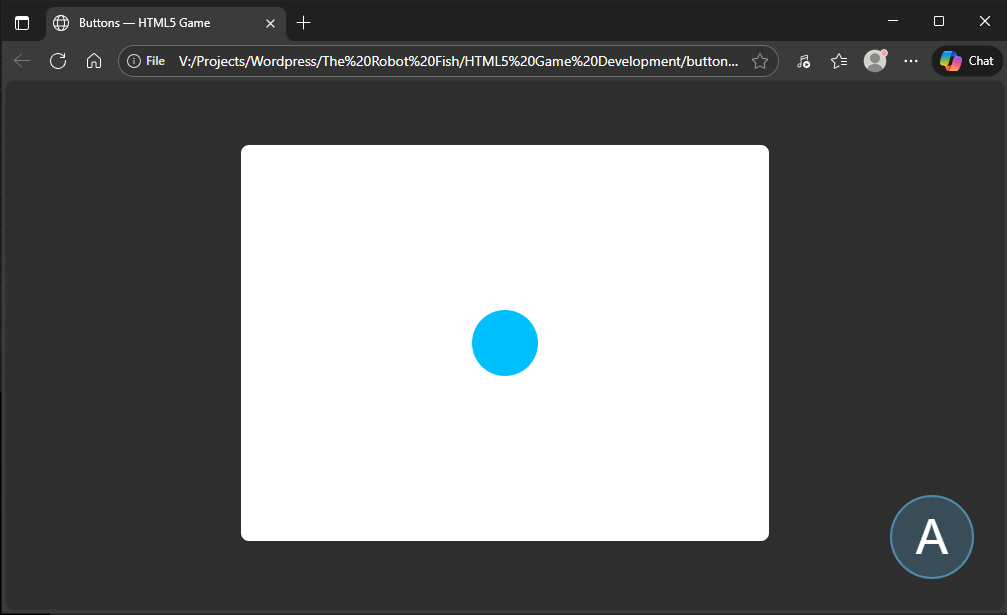
    Here’s the result:
    Creating the Button Object

    Now that we’ve created our button, we have to write some JavaScript code to interact with it. The best way to do that is to create an object for it so it can be reused in other places. Below is a basic template for a button object that we will be using. Copy this and paste it under our <script> tag before anything else.

    /* Initialize TRF (The Robot Fish) namespace */
    this.trf = this.trf||{};
    
    (function() {
        "use strict";
    
        function Button() {
            // insert constructor here
        }
        var p = Button.prototype;
        createjs.EventDispatcher.initialize(p);
    
        // insert functions in here
    
        trf.Button = Button;
    
    }());Code language: JavaScript (javascript)

    In this template, we use the function wrapper to keep variables enclosed and to have the anonymous function run right away. "use strict"; is implemented to catch errors.

    (function() {
        "use strict";
    }());Code language: JavaScript (javascript)

    The trf is used as the identifier to prevent the namespace from getting too polluted.

    this.trf = this.trf||{};Code language: JavaScript (javascript)

    We also use the CreateJS EventDispatcher class to inject listener functionality so we can dispatch our own custom events.

    createjs.EventDispatcher.initialize(p);Code language: CSS (css)

    The var p is there to store the Button prototype so we can use it to add our functions later.

    var p = Button.prototype;Code language: JavaScript (javascript)

    Finally, we add the button object to the trf using this:

    trf.Button = Button;

    Building the Constructor and Functions

    The constructor of an object runs once when the object is instantiated. It is used to initialize and set object variables.

    When we create the new object, we pass in the Id for the button element, the button active style class, and the keyboard keys that will be tied to the button.

    Replace the constructor with the new one below.

    
    function Button(elementId, activeStyle, keys) {
        this.elementId = elementId;
        this.activeStyle = activeStyle;
        this.keys = keys;
    
        this.element = null;
        this.isPressed = false;
        this.activeControl = "";
    
        this.activate();
    };
    Code language: JavaScript (javascript)

    Now we add the functions that will make the Button work. Insert these function templates into the Button object.

    p._onPressAction = function(){
        //private action on press
    };
    
    p._onReleaseAction = function(){
        //private action on release
    };
    
    p.activate = function(){
        //attach element, set visible, and add listeners
    };
    
    p.handleOnPressPointer = function(event){
        //handle pointer down event
    };
    
    p.handleOnReleasePointer = function(event){
        //handle pointer release event
    };
    
    p.handleOnPressKeyboard = function(event){
        //handle keyboard press event
    };
    
    p.handleOnReleaseKeyboard = function(event){
        //handle keyboard release event
    };
    
    p.destroy = function(){
        //remove element, set not visible, and remove listeners
    };Code language: JavaScript (javascript)

    Activate and Destroy Function

    We start by defining the activate() function. The purpose of this function is to set the html element the button is attached to, set the element to visible, and add the event listeners.

    The activate function is first called in the constructor but may be called later after the Button has been disabled by the destroy() function. Replace the activate function with the code below:

    p.activate = function(){
        if (this.element === null) {
            this.element = document.getElementById(this.elementId);
            this.element.style.visibility = "visible";
    
            <mark style="background-color:rgba(0, 0, 0, 0)" class="has-inline-color has-contrast-color">this.handleOnPressPointerBind = this.handleOnPressPointer.bind(this);
            this.handleOnReleasePointerBind = this.handleOnReleasePointer.bind(this);</mark>
    
            this.handleOnPressKeyboardBind = this.handleOnPressKeyboard.bind(this);
            this.handleOnReleaseKeyboardBind = this.handleOnReleaseKeyboard.bind(this);
            
            this.element.addEventListener("pointerdown", this.handleOnPressPointerBind);
            this.element.addEventListener("pointerleave", this.handleOnReleasePointerBind); 
            this.element.addEventListener("pointerup", this.handleOnReleasePointerBind); 
    
            document.addEventListener("keydown", this.handleOnPressKeyboardBind);
            document.addEventListener("keyup", this.handleOnReleaseKeyboardBind);
        };
    };Code language: JavaScript (javascript)

    In the code above, we first check for the this.element being null to prevent duplication. We then set the this.element using the this.elementId that was passed into the constructor. We also set the style visibility of the element to "visible" in the case it was destroyed earlier and was "hidden".

    if (this.element === null) {
        this.element = document.getElementById(this.elementId);
        this.element.style.visibility = "visible";Code language: JavaScript (javascript)

    Next, we use the bind() function to bind the this keyword to the handle functions. The handle functions get passed into the listener callback, so without this binding, it will not understand where this needs to be pointed at. We save the anonymous functions created by the bind() so we can safely remove it later in the destroy() function.

    this.handleOnPressPointerBind = this.handleOnPressPointer.bind(this);
    this.handleOnReleasePointerBind = this.handleOnReleasePointer.bind(this);
    
    this.handleOnPressKeyboardBind = this.handleOnPressKeyboard.bind(this);
    this.handleOnReleaseKeyboardBind = this.handleOnReleaseKeyboard.bind(this);Code language: JavaScript (javascript)

    Finaly, we add the event listeners. We used the pointer events because they encapsulate both mouse and touch interactions. For simplicity we used the release handle for the pointer on both the "pointerleave" and "pointerup" events.

    For the keyboard control we have to add the listener to the document so that it can be captured all the time. We will have to be careful in handling the event, so it doesn’t fire on non-related key presses.

    this.element.addEventListener("pointerdown", this.handleOnPressPointerBind);
    this.element.addEventListener("pointerleave", this.handleOnReleasePointerBind); 
    this.element.addEventListener("pointerup", this.handleOnReleasePointerBind); 
    
    document.addEventListener("keydown", this.handleOnPressKeyboardBind);
    document.addEventListener("keyup", this.handleOnReleaseKeyboardBind);Code language: JavaScript (javascript)

    Finaly, we implement the destroy() function accordingly. Replace the destroy() function with the code below.

    p.destroy = function(){
        this.element.removeEventListener("pointerdown", this.handleOnPressPointerBind);
        this.element.removeEventListener("pointerleave", this.handleOnPressPointerBind);
        this.element.removeEventListener("pointerup", this.handleOnReleasePointerBind);
    
        document.removeEventListener("keydown", this.handleOnPressKeyboardBind);
        document.removeEventListener("keyup", this.handleOnReleaseKeyboardBind);
    
        this.element.style.visibility = "hidden";
    
        this.isPressed = false;
        this.element = null;
    };Code language: JavaScript (javascript)

    Handle Functions

    Now that we added the listeners, it is time to define the handle functions. We start with the pointer handlers. Replace the functions in the template with the following code.

    p.handleOnPressPointer = function(event){
        if (this.isPressed === false){
            this.activeControl = "pointer";
            this._onPressAction();
        };
    };
    
    p.handleOnReleasePointer = function(event){
        if (this.isPressed === true){
            if (this.activeControl === "pointer"){
                this._onReleaseAction();
            };
        };
    };Code language: JavaScript (javascript)

    The first thing to do in the handlers is to check the this.isPressed state of the button. This is important to prevent interference with the keyboard actions. Only on the press events do we set the this.activeControl, which will lock in the control type until release.

    If all the checks pass, we then execute the private action functions. The underscore _ is just for notation and readability only. We will use these functions to add or remove the active style and also dispatch out own custom onPress and onRelease events which we will listen for later.

    Let’s define these private functions by replacing them in our template with this below:

    p._onPressAction = function(){
        this.element.classList.add(this.activeStyle);
    
        this.isPressed = true;
        this.dispatchEvent("onPress");
    };
    
    p._onReleaseAction = function(){
        this.element.classList.remove(this.activeStyle);
    
        this.isPressed = false;
        this.dispatchEvent("onRelease");
    };Code language: JavaScript (javascript)

    Finaly, we finish this off by adding the keyboard listeners.

    p.handleOnPressKeyboard = function(event){
        if (this.isPressed === false){
            if (this.keys.includes(event.key)) {
                this.activeControl = "keyboard";
                this._onPressAction();
            };
        };
    };
    
    p.handleOnReleaseKeyboard = function(event){
        if (this.isPressed === true){
            if (this.activeControl === "keyboard"){
                if (this.keys.includes(event.key)){
                    this._onReleaseAction();
                };
            };
        };
    };Code language: JavaScript (javascript)

    It is very similar to the pointer handlers except; we also have the added check of the key press by looking for the event.key in the array this.keys that was passed in.

    if (this.keys.includes(event.key)){Code language: CSS (css)

    Finishing Up

    Now that our Button Class is ready, all we have to do is use it. Replace the entire main program with the following code:

    var button, vel = 0;
    var stage,circle;
    
    function init() {
        stage = new createjs.Stage("trf-gameCanvas");
        circle = new createjs.Shape();
        button = new trf.Button("trf-buttonBR",
                                "trf_ButtonActive",
                                ["a", "A", " "]);
    
        circle.graphics
            .beginFill("DeepSkyBlue")
            .drawCircle(0, 0, 50);
        circle.x = 400;
        circle.y = 300;
    
        button.addEventListener("onPress", function(event){
            vel = -2;
        });
        button.addEventListener("onRelease", function(event){
            vel = 1;
        });
    
        createjs.Ticker.framerate = 60;
        createjs.Ticker.on("tick", tick);
    
        stage.addChild(circle);
    
        window.removeEventListener("load", init);
    }
    
    function tick(event) {
        circle.y += vel;
        stage.update(event);
    }
    
    window.addEventListener("load", init);Code language: JavaScript (javascript)

    A couple of things to note for the code above; first, we add a new button and velocity variable:

    var button, vel = 0;Code language: JavaScript (javascript)

    Next, we create a new button object with the element id, the active button CSS class and a list of buttons to bind to. We’ve chosen the a, A, and space keys.

    button = new trf.Button("trf-buttonBR",
                            "trf_ButtonActive",
                            ["a", "A", " "]);Code language: JavaScript (javascript)

    Then we add the listeners for our custom button events. Here we are setting the velocities.

    button.addEventListener("onPress", function(event){
        vel = -2;
    });
    button.addEventListener("onRelease", function(event){
        vel = 1;
    });Code language: JavaScript (javascript)

    After that, we add a ticker event that fires 60 frames per second.

    createjs.Ticker.framerate = 60;
    createjs.Ticker.on("tick", tick);
    Code language: JavaScript (javascript)

    Finaly, we add the tick event handler itself to update the circle position and draw the objects.

    function tick(event) {
        circle.y += vel;
        stage.update(event);
    }Code language: JavaScript (javascript)

    And we are done! We now have a button object that is responsive to mouse, touch and keyboard, and we can add as many of them as we want. In the next part, we will take what we have here and build a simple game.

    You can try the button demo here.

    You can download the project files here.

  • HTML5 Game Development Part 1 – helloWorld

    Click on image for the Demo.

    A long time ago, back in the early 2000s, the internet looked a lot different than it is today. Youtube and social media was only getting started, and the popular way to share and interactive content online was through this player you would download on the browser called Adobe Flash.

    Back then, I worked several co-ops developing games on the Adobe Flash platform and also making games of my own which I would upload to my Yahoo geocities webpage. Now that Adobe Flash has been fully replaced by HTML5, I want start developing games again, but on the HTML5 platform.

    One of the games I worked on as a Flash developer co-op.

    In this series, I will document how to develop a game from start to finish using HTML5, JavaScript, and some CSS. The intention is to only use the basics, so all you need is a code editor and an internet browser to start coding. Buckle up!

    Getting Started

    There are many ways to develop games on the HTML5 platform. You can use a game engine like Godot or Phaser, but I don’t like this approach because it adds extra complexity and overhead, and I want to just keep things simple. After doing some research, I decided the best thing to do is to write the entire game on a single html file. This way it can be loaded directly to the WordPress media library and makes it easy for anyone wants to host the game online.

    This is where the CreateJS libraries come in. Built by the people who previously worked with Adobe Flash, CreateJS is a set of modular libraries that make working with the HTML5 canvas a lot easier.

    To begin, all we need is a code editor and an internet browser. You can use whatever you’re familiar with; I am using Visual Studio Code as my code editor and Microsoft Edge as my internet browser. Let’s start by creating a folder called helloWorld and create a file inside it called helloWorld.html.

    Simple HTML page

    Now that we’ve created a helloWorld.html file, it’s time to set up a basic template for our game. Copy the basic template below into your helloWorld.html file.

    <!doctype html>
    <html lang="en">
    <head>
        <meta charset="utf-8" />
        <meta name="viewport" content="width=device-width,initial-scale=1" />
        <title>HelloWorld — HTML5 Game</title> 
    
        <style>
            /* Insert CSS Style here*/
        </style>
    
    </head>
    <body>
        <div>
           <!-- Insert Top Controls Overlay Here-->
        </div>
    
        <div>
           <!-- Insert Game Canvas Here-->
        </div>
    
        <div>
           <!-- Insert Bottom Controls Overlay Here-->
        </div>
    
        <script src="https://code.createjs.com/1.0.0/createjs.min.js"></script>
    
        <script>
            /* Insert JavaScript Code Here*/
        </script>
    
    </body>
    </html>Code language: HTML, XML (xml)

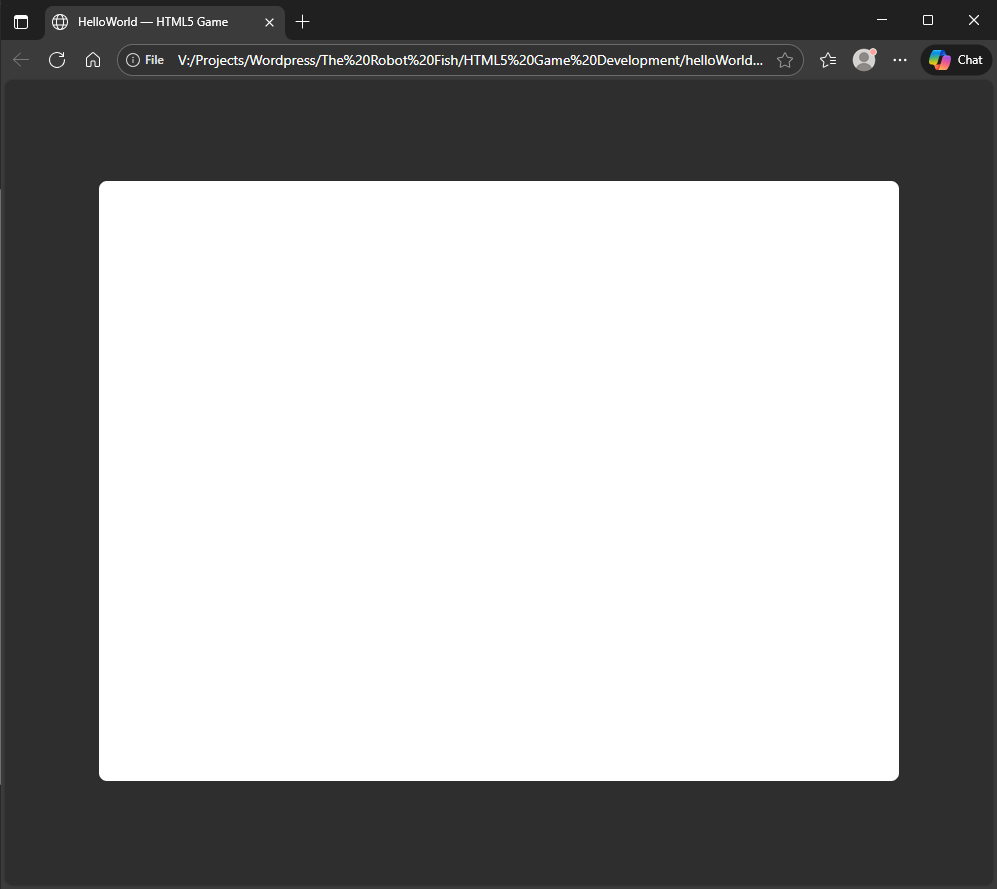
    In this template, we made comments where you would put CSS and JavaScript code. You can test it by opening this html file on your browser, but when you do, all you get is a blank page.

    Adding CSS

    To spice it up, we need to add some CSS code to differentiate between the background and our canvas. Add the CSS code below to the <style> tags in our template:

    html,body{
        height:100%;
        margin:0;
        touch-action: none !important;
    }
    body{
        display:flex;
        align-items:center;
        justify-content:center; 
        background:rgb(46, 46, 46)
    }
    
    #trf-gameCanvas{
        width:100%; 
        height:auto; 
        border-radius:8px;
        background:white
    }Code language: CSS (css)

    This snippet of code will center all the items, make the background grey, and make the game canvas white. We will call the game canvas id="trf-gameCanvas", and it will fill the space with width: 100%; while maintaining the aspect ratio using height: auto;. All we need to do now is add the game canvas itself. Insert this code in the <div> tag for the game canvas:

    <canvas id="trf-gameCanvas" width="800" height="600" ></canvas>Code language: HTML, XML (xml)

    Here is where we set the aspect ratio for the game. In this case, we have set the width="800" and the height="600" making the aspect ratio the classic 4:3. This ends up being a good compromise on PC and modern mobile screens because although 16:9 will fill up the screen more completely, it doesn’t work as well especially when the orientation of the screen is changed. The aim here is make the game canvas work on all devices, so this setting will do the trick.

    Here’s what it looks like when you open the html file!

    Vertical Scaling Problem

    At its current state, the canvas is already responsive to changes in width of the screen, but you may have noticed it having problems scaling vertically. This is a problem on mobile devices where the user may try to do a landscape rotation, which will mess it all up.

    We can solve this problem by creating a media rule in the CSS:

    @media (max-height: 600px) and (aspect-ratio > 4/3) { 
        #trf-gameCanvas{
            height:75vh; 
            width:auto;
        }
    }Code language: CSS (css)

    Now when you open the html file, the canvas will scale both horizontally and vertically to the size of the window. The height:75vh; is important here because on mobile devices certain UI elements can cover up the canvas. Having the height only be 75% of the viewing height solves that problem.

    Drawing a circle

    Finaly, let’s finish off our Hello World program by drawing a blue circle with the CreateJS library. Using this library is quite simple, we begin by copying the code below and paste it under the JavaScript <script>.

    var stage,circle;
    
    function init() {
    
        stage = new createjs.Stage("trf-gameCanvas");
        circle = new createjs.Shape();
    
        circle.graphics.beginFill("DeepSkyBlue").drawCircle(0, 0, 50);
        circle.x = 400;
        circle.y = 300;
    
        stage.addChild(circle);
        stage.update();
    
        window.removeEventListener("load", init);
    }
    
    window.addEventListener("load", init);Code language: JavaScript (javascript)

    What we’re doing here is we created a shape called circle, use the graphics inside it to draw the blue circle, and then positioned it at the center of the game canvas coordinates. We then added the circle to the stage, which is the game canvas that we created earlier, and we used the stage.update() function to draw all elements on that stage. The init() function is created to run after the page is loaded.

    Hello World!

    We’ve done it. In this part, we created a responsive game canvas that we can view on any device, and as the artists that we are, we drew a perfect blue circle. Where things go from here is up to you, the possibilities are literally endless. In the next part, we will add some controls to manipulate our blue circle.

    To host this helloWorld.html file, all we have to do is upload it to the WordPress media library. We’ve done it, and you can see it in action here.

    You can download all the files here.

  • Expert System Part 1

    An expert system emulates the knowledge and expertise of a human being by breaking it up to two parts: A knowledge base, and an inference engine. First developed in the 1960’s and later became widely used in the 1980’s, it is one of the first successful application of AI.

    In this series, we will create a program in python that will put you into the seat of an animal expert: allowing us to build a knowledge base of animal traits. Once that is built, the program will use the knowledge base to guess which animal most likely fits with those traits.

    Getting Started

    If you haven’t already, set up your environment and install python. You can follow the instructions from our previous post on the ELIZA Chatbot.

    To begin, we will create a file called Dolittle.py after the famous animal whisperer doctor. Our first job is to define the knowledge base, and it must be persistent. We will use pickle to save and load the knowledge base to a Dolittle_data.dat file.

    import tkinter
    import pickle
    import tkinter as tk
    from tkinter import ttk, messagebox, simpledialog, IntVar
    
    datafile = 'Dolittle_data.dat'
    
    class KnowledgeBase:
        def __init__(self):
            self.animals = set()
            self.queries = []
    
    # Load existing knowledge base if available
    try:
        with open(datafile, 'rb') as f:
            unpickler = pickle.Unpickler(f)
            knowledgeBase = unpickler.load()
            print("Knowledge base loaded.")
    except FileNotFoundError:
        knowledgeBase = KnowledgeBase()
        print("No existing knowledge base found. Starting fresh.")
    
    # To Do: Add something here
    
    # Save knowledge base on exit
    with open(datafile, 'wb') as f:
        pickler = pickle.Pickler(f)
        pickler.dump(knowledgeBase)
        print("Knowledge base saved.")

    When you first run this code, it would look for the data file and fail to find one. It will then create a new knowledge base object and save it to the datafile. This is output you would see:

    No existing knowledge base found. Starting fresh.
    Knowledge base saved.
    
    Knowledge base loaded.
    Knowledge base saved.

    Adding Some GUI

    In the place of the To Do comment up above, we will write some GUI code to get started. The placeholder guessAnimal() function will be used later.

    def guessAnimal():
        pass
    
    # Create main application window
    root = tk.Tk()
    frame = ttk.Frame(root, padding="10")
    frame.grid()
    tk.Label(frame, text="Think of an animal").grid(column=0, row=0)
    goButton = tk.Button(frame, text="OK", command=guessAnimal)
    goButton.grid(column=1, row=0)
    
    #  Do the main loop
    root.mainloop()Code language: PHP (php)

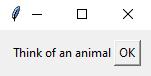
    This will just create a prompt window to think of an animal until you close the window.

    Asking Questions

    In this program, we will simplify the query to a yes or no question. It’s up to the animal expert to determine what they are. Some examples could be: Does it fly? – yes or no, Does it eat meat? – yes or no, Does it have four limbs? – yes or no, etc.

    To do this we will create a Query class under the KnowledgeBase class. It will store a question and a list of animals that fit in the yeses category and a set of animals that fit in the nos category. We will also give the Query an ask function that will take a set of possible animals and match it with the yeses and nos.

    class Query:
        def __init__(self, question, yeses=set(), nos=set()):
            self.question = question
            self.yeses = yeses
            self.nos = nos
        
        def __str__(self):
            return'[Q: ' + self.question + ' Y:' + str(self.yeses) + ' N:' + str(self.nos) + ']'
        
        def ask(self, possible):
            answer = tk.messabox.askquestion(title = "Question", message = self.question)
            if answer == 'yes':
                return possible.intersection(self.yeses), 'yes'
            else:
                return possible.intersection(self.yeses), 'no'

    After the Query class we will create a function that checks if the existing questions is sufficient to find the new animal. If it returns False, then we know we need to ask another question.

    def canWeFind(newAnimal):
        possible = knowledgeBase.animals
        for query in knowledgeBase.queries:
            if newAnimal in query.yeses:
                possible = possible.intersection(query.yeses)
            if newAnimal in query.nos:
                possible = possible.intersection(query.nos)
        return len(possible) == 1Code language: JavaScript (javascript)

    That’s it for now. In the upcoming parts, we will finish off the GUI stuff, and the very important guessAnimal() function.

  • ELIZA Chatbot Part 3

    Now that we can match the patterns, we have to get the keywords from a user’s input and find it in the rulebook. Then use the keywords to answer the question using the patterns and responses from the rulebook. Let’s go!

    The Rulebook

    For the rulebook we will be using a python file derived from the original ELIZA program script. Below is a sample of what it looks like. You can download the entire file here.

    rulebook = { "sorry": (0,
    			[
    				[[0],
    					["please do not apologize"],
    					["apologies are not necessary"],
    					["what feelings do you have when you apologise"]]					
    			]),
    		"remember": (5,
    			[
    				[[0, "you", "remember", 0],
    					["do you think often of", 4],
    					["does thinking of", 4, "bring anything else to mind"],
    					["what else do you remember"],
    					["why do you remember", 4, "just now"],
    					["what in the present situation reminds you of", 4],
    					["what is the connection between me and", 4]],
    				[[0, "do", "i", "remember", 0],
    					["did you think I would forget", 5],
    					["why do you think I should recall", 5, "now"],
    					["what about", 5]]
    			]),
    Code language: JavaScript (javascript)

    To use the rulebook we will import the file using this code:

    from ELIZArules import conversions, rulebookCode language: JavaScript (javascript)

    Finding Keywords from Rulebook

    We will use the findKeywords() function to return a list of keywords and the phrases they appear in. There’s no fancy sorting here, it just looks through the rulebook for matching keywords and putting the highest priority items first.

    def findKeywords(text):
        for phrase in splitClauses(text):
            words = list(transform(splitWords(phrase)))
            maxPriority  = 0
            keywords = []
            for word in words:
                if word in rulebook:
                    priority = rulebook[word][0]
                    if priority > maxPriority:
                        maxPriority = priority
                        keywords.insert(0, word)
                    else:
                        keywords.append(word)
        if len(keywords) > 0:
            return keywords, words
        return [], []Code language: PHP (php)

    Answering the Question

    With all the keywords found, all we need is to match the input to a response pattern. We will use the compose() function to put the sentences together. If no matches are found, then a randomized default answer will be provided.

    defaultAnswers = [
        "I'm not sure I understand you fully.",
        "Please go on.",
        "What does that suggest to you?",
        "Do you feel strongly about discussing such things?",
        "That is quite interesting.",
        "Tell me more about that.", 
        "How does that make you feel?",
        "Why do you say that?"
    ]
    
    def compose(template, fields):
        result = ''
        for t in template:
            if type(t) == int:
                result += ' ' + fields[t-1]
            else:
                result += ' ' + t
        return result.strip()
    
    def answer(keywords, words):
        for keyword in keywords:
            for test in rulebook[keyword][1]:
                pattern = test[0]
                responses = test[1:]
                success, matches = matchPattern(pattern, words)
                if success:
                    response = random.choice(responses)
                    return compose(response, matches)
        return random.choice(defaultAnswers)Code language: PHP (php)

    Putting it all together

    To run program, we just have to call the functions we just created:

    while True:
        text = input('?')
        if len(text) == 0:
            break
    
        keywords, words = findKeywords(text)
        print(answer(keywords, words))Code language: PHP (php)

    That’s it, below is a sample conversation I’ve had with this chatbot. The entire code can be downloaded here.

    ?i feel sad, i want to play
    why do you want to play
    ?it make me feel happy
    of what does feeling happy remind you
    ?good times on the playground
    Please go on.
    ?playing on the swings, jumping up and down
    What does that suggest to you?
    ?i am a child at heart
    do you believe it is normal to be a child at heart
    ?i think it should be
    That is quite interesting.Code language: JavaScript (javascript)

    Conclusion

    As primitive as this 1966 chatbot is, it can in some instances create interesting conversations as an approximation of a therapist. Obviously, it can easily be fooled to giving out non-sensical responses, but it can be made better with a more complex rulebook, input scanning, and spell checks. What I learned from this exercise is that a chatbot does not necessarily need to understand language to function.

    The main advantage of this kind of chat bot is that it is very predictable and will never hallucinate answers. If the chatbot is given enough information in its rulebook, it can be an expert in a particular field. For example, querying banking information where a user is expected to ask certain types of questions.

    Overall, this has been a fun exercise and introduction to AI. I hope you learn something as well. Leave a comment below!

  • Happy Halloween 2025!

    It’s that time of the year again, spooky costumes, sugar filled candies, and pumpkin carving! This year I decided to create a pumpkin carving of Evelyn Wade, from one of my favorite shows on Netflix this year, Wayward. If you haven’t heard of Wayward, it is a thriller set in the early 2000’s in a fictional town of Tall Pines where nothing is as it seems …

    You can check out my previous pumpkin carvings in my artwork section here.

    Using ChatGPT

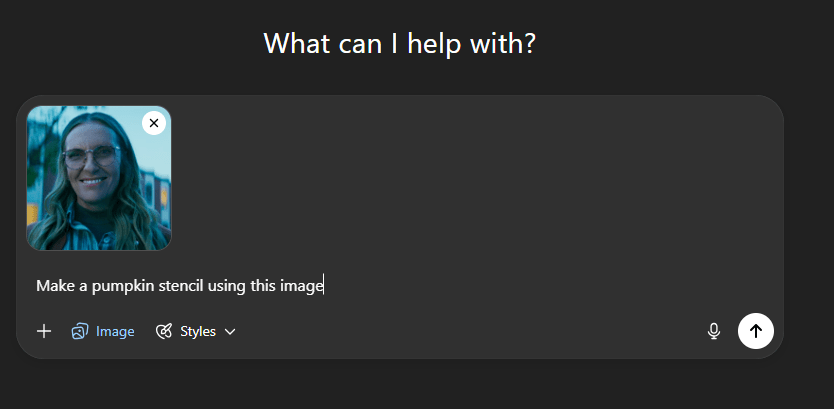
    In the past I’ve created and the pumpkin stencil by using some software and manually map out the cuts by hand. This year I’d thought I’d give chatGPT a try to make the stencil for me. Here’s my initial attempt and prompt:

    As you can see, this is a good initial attempt, but if you follow the stencil exactly, parts of the pumpkin will simply fall off since there is no consideration of the structural integrity of the pumpkin. Unfortunately, giving the prompt to “consider adding structural integrity of the pumpkin” or “highlight the areas where skin is to be removed in grey” did not help.

    ChatGPT can do many things, but it doesn’t really know what a pumpkin is, therefore some manual work is required to fix it up.

    Manual Editing

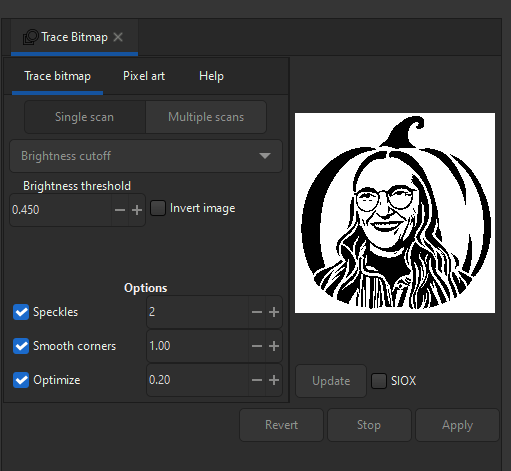
    Since the first image is quite good already, that image is used as my starting point. I first used inkscape to vectorize the image, and then I imported it to Flash where I made my edits. Here are my trace bitmap settings.

    I removed parts that were unnecessary, clarified for myself which parts to cut out completely and which parts to leave behind. Black is pumpkin with skin on, gray is pumpkin with skin off, and white is complete pumpkin removal. Here is the end result!

    Carving the Pumpkin

    For this carving I’ve assembled some tools to help with the build. In addition to my usual carving equipment, I thought I would bring out the Dremel as well just in case, but I didn’t really end up using it much. I just mostly relied on my hand tools.

    The first step is to tape the stencil securely onto the pumpkin, then carefully outline the design using a thumbtack. I did this step the night before opening the pumpkin, so I could focus entirely on carving the next day. Patience is key here, especially when working through sections with lots of small, intricate details.

    Once all the outlining from the stencil is done, the pumpkin is ready to carve. The order in which you remove each section is important especially when working with fine details that could easily break or collapse.

    To maintain the pumpkin’s structural integrity, I started by removing only the skin sections first, working from the smallest areas to the largest. Once that was done, I opened the pumpkin and cleared out the inside before cutting out the full sections of the pumpkin.

    It always looks a bit off while you’re carving, but if you trust in the process, everything will come together in the end.

    Conclusion

    Although a lot of manual work is still involved, using ChatGPT to help create the stencil has definitely improved my process of creating pumpkin stencils. In the past, it has always been a struggle to find the right image and do the correct post processing. I would absolutely use this method again in my future carvings.

    This project illustrates how AI can help with a creative task, mixing some digital intelligence along with some analog intelligence. At the end of the day AI still doesn’t really know what a pumpkin is. It can’t feel its weight, the texture of its skin, or the scent when it’s freshly opened. Maybe one day it will get there, but for now, humans are still not obsolete!

  • ELIZA Chatbot Part 2

    In order to create the rulebook, we need a dictionary of keywords, consisting of a priority number and a list of possible patterns, and responses to be made if the patterns do match. In code it looks something like this:

    {"keyword":(priority,
        [
            [pattern,
             response,
             response],
             [pattern,
              response]
        ]),
    "keyword":(priority,
        [
            [pattern,
             response,
             response]
        ])}Code language: JavaScript (javascript)

    The pattern is a list that contain a list of words to search for and the number of words matching before and after it. The number 0 will mean zero or more words are found. For example, given a pattern like this:

    [0,"I","am",0]Code language: JSON / JSON with Comments (json)

    It will create match with phrases like, “maybe I am tired”, or “I am tired today” or simply “I am tired”

    The response is a similar list except the textual pieces are not single words, and the number represents the word(s) in the pattern to substitute into the response.

    So, given the pattern shown above, and if the user inputs this text:

    “maybe I am tired today”

    This will result in “maybe” as number 1, “I” as number 2, “am” as number 3, and “tired today” as number 4.

    If we write a response as such:

    ["Is it because you are", 4, "that you came to see me?"]Code language: JSON / JSON with Comments (json)

    The resulting exchange would be this:

    ?Maybe I am tired today

    Is it because you are tired today that you came to see me?

    Sometimes we will have no pattern matches. In that case we will come up with a generic response like, “please tell me more” or “that is very interesting”

    Enforcing the rules

    We need to create a matchPattern() function to match the user input to one of the patterns. First, we have to deal with wild cards, when the pattern is 0. If 0 is found to be the last item on the pattern list, then we simply append the rest of the text. Otherwise we will create another function called matchWildCard() to handle it. Write this above the main program:

    def matchPattern(pattern, text):
        matches = []
        for i in range(len(pattern)):
            if pattern[i] == 0:
                if i+1 == len(pattern):
                    matches.append(' '.join(text))
                else:
                    success, match, text = matchWildcard(pattern[i+1], text)
                    if not success:
                        return False, []
                    else:
                        matches.append(match.strip())
    Code language: PHP (php)

    We want to also be able to handle related meanings, which will help reduce a lot of redundant code. An example pattern with this might be:

    [0,"I","am",0,["happy","glad","better"],0]Code language: JSON / JSON with Comments (json)

    In this case we want to match “I am happy”, “I am glad”, and “I am better”, with the same responses. Here’s all of the code for the function.

    ef matchPattern(pattern, text):
        matches = []
        for i in range(len(pattern)):
            if pattern[i] == 0:
                if i+1 == len(pattern):
                    matches.append(' '.join(text))
                else:
                    success, match, text = matchWildcard(pattern[i+1], text)
                    if not success:
                        return False, []
                    else:
                        matches.append(match.strip())
            elif len(text) == 0:
                return False, []
            elif not isinstance(pattern[i], str):
                if text[0] in pattern[i]:
                    matches.append(text[0])
                    text = text[1:]
                else:
                    return False, []
            elif pattern[i] == text[0]:
                matches.append(text[0])
                text = text[1:]
            else:
                return False, []
        return True, matchesCode language: PHP (php)

    Matching the wild cards

    matchWildcard() function returns three values: a success/fail, the text matched, and the text remaining. One way to do this is through the use of recursion. We will use a soFar argument to keep track of what was matched. The function terminates when all the text is read or if the text matches with the term.

    def matchWildcard(term, text, soFar=''):
        if len(text) == 0:
            return False, '', []
        if (isinstance(term,str) and text[0] == term) or (not isinstance(term,str) and text[0] in term):
            return True, soFar, text
        return matchWildcard(term, text[1:], soFar + ' ' + text[0])Code language: PHP (php)

    Testing the code

    Now is a good time to test if the matchPattern() and matchWildCard() code works. We do that by creating a testPatterns() function above our main program to test for a variety of cases.

    def testPatterns():
        print(matchWildcard('stop', ['stop']))
        print(matchWildcard('stop', ['stop', 'now']))
        print(matchWildcard('stop', ['please', 'stop', 'now']))
        print(matchWildcard('stop', ['please', 'I', 'stop']))
        print(matchWildcard('stop', ['please', 'I', 'stop', 'now']))
        print(matchWildcard('stop', ['please', 'I', 'finish', 'now']))
        print(matchPattern([0, 'stop', 0], ['stop']))
        print(matchPattern([0, 'stop', 0], ['stop', 'now']))
        print(matchPattern([0, 'stop', 0], ['please', 'stop', 'now']))
        print(matchPattern([0, 'stop', 0], ['please', 'I', 'stop']))
        print(matchPattern([0, 'stop', 0], ['I', 'stop', 'right', 'now']))
        print(matchPattern([0, 'stop', 0], ['I', 'can', 'finish', 'now']))
    Code language: PHP (php)

    Here’s the resulting output:

    (True, '', ['stop'])
    (True, '', ['stop', 'now'])
    (True, ' please', ['stop', 'now'])
    (True, ' please I', ['stop'])
    (True, ' please I', ['stop', 'now'])
    (False, '', [])
    (True, ['', 'stop', ''])
    (True, ['', 'stop', 'now'])
    (True, ['please', 'stop', 'now'])
    (True, ['please I', 'stop', ''])
    (True, ['I', 'stop', 'right now'])
    (False, [])Code language: PHP (php)

  • ELIZA Chatbot Part 1

    ELIZA an early chatbot created by Joseph Weizenbaum in 1966. In this series I will attempt to recreate the program in python and learn the fundamental concepts and techniques to make it work. This is solely a learning experience for me to get my feet wet on programming AI.

    Like most chatbots, it will only have a minimal understanding of its inputs. An example would be if the user types:

    I feel very bored.

    The chatbot will not understand what bored means but will reply with something like

    How long have you been bored?

    Installing Python

    First thing’s first, we have to download and install python for windows from:

    https://www.python.org/downloads/windows/

    Verify the Python version using this prompt in cmd

    python -- version

    Then check the package manager PIP is installed by typing:

    python -m ensurepip --upgrade
    

    Next, use PIP to install the Pygame library for graphics

    python -m pip install pygame

    Finally, the file Eliza.py is created to start the project. I used VS Code with the python extension as my IDE. I would highly recommend using this.

    Clean up user inputs

    The first step is to clean up the user inputs and partition the text into a list of clauses. We will do that by removing all comma with periods, converting all letters to lowercase, leading spaces will be stripped off and delete all apostrophes.

    import random
    def splitClauses(text):
        return map(lambda x: x.strip(''), 
                   text.lower().replace(',', '.').replace('!','.').replace("'", '').split('.'))
    
    def splitWords(text):
        return text.split()
    
    while True:
        text = input('?')
        if len(text) == 0:
            break
    
        #Do something with the input
    
        for clause in splitClauses(text):
            print(splitWords(clause))Code language: PHP (php)

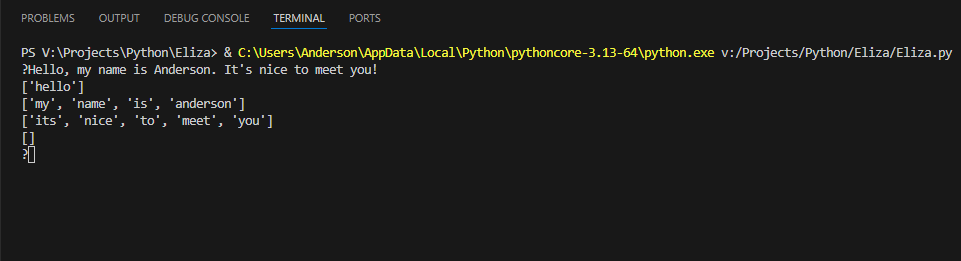
    When you run this code in the terminal, you get this as a result:

    Echoing technique

    The next thing we need to do is convert the text so it can be said by the program. For example, every time we see “I” we need to convert it to “you”, and vice versa. In order to do this type of echoing, we need a transform function and a list of conversions:

    conversions = {'i': 'you','you': 'i', 'am': 'are', 'are': 'am','my': 'your','your': 'my','myself': 'yourself','yourself': 'myself'}
    
    def transform(text):
        return map(lambda x: conversions[x] if x in conversions else x, text)Code language: JavaScript (javascript)

    With this simple conversion, it allows the program to feel like talking to a human without it really knowing any context. In the following parts, we will add a rulebook and pattern recognition. Here’s the full code of what we’ve done:

    import random
    def splitClauses(text):
        return map(lambda x: x.strip(''), 
                   text.lower().replace(',', '.').replace('!','.').replace("'", '').split('.'))
    
    def splitWords(text):
        return text.split()
    
    conversions = {'i': 'you','you': 'i', 'am': 'are', 'are': 'am','my': 'your','your': 'my','myself': 'yourself','yourself': 'myself'}
    
    def transform(text):
        return map(lambda x: conversions[x] if x in conversions else x, text)
    
    
    while True:
        text = input('?')
        if len(text) == 0:
            break
    
        #Do something with the input
    
        for clause in splitClauses(text):  
            
            print(list(transform(splitWords(clause))))
    Code language: PHP (php)
  • Thank You Ballard!

    It’s hard to believe it’s been 10 incredible years since I started my journey at Ballard Power Systems. During that time, I’ve had the privilege of working alongside amazing colleagues, contributing to innovative projects, and witnessing the real-world impact of hydrogen fuel cell technology up close. Although my chapter at Ballard has come to a close (for now), I’m deeply grateful to everyone who mentored, supported, and inspired me along the way. You’ve made this experience truly unforgettable.

    As I take the next step in my career journey, feel free to reach out or connect with me here on LinkedIn!

  • Arduino Laser Tag Update #4

    PCB Etching and Soldering Components

    Fits perfectly into a toy gun.

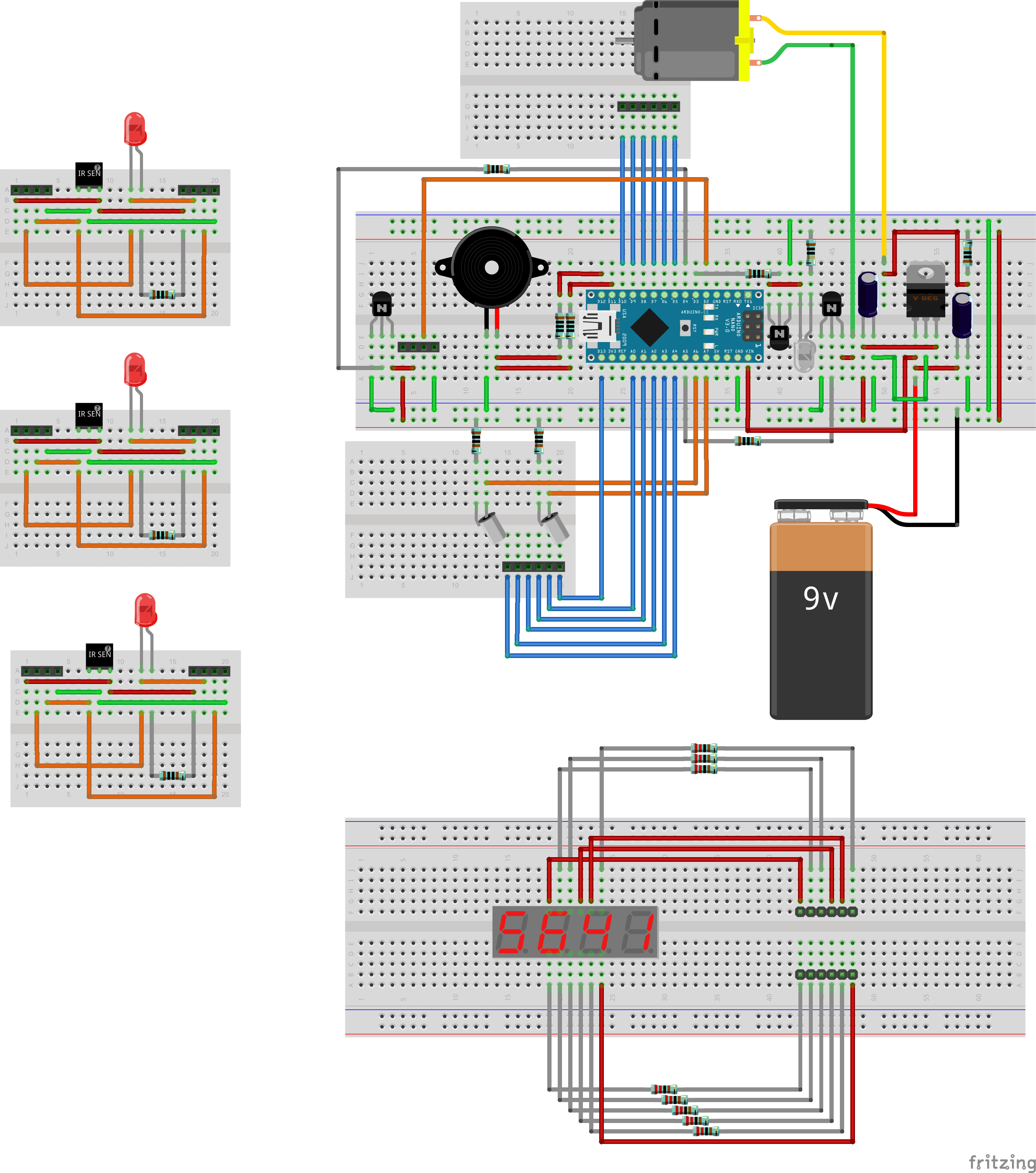
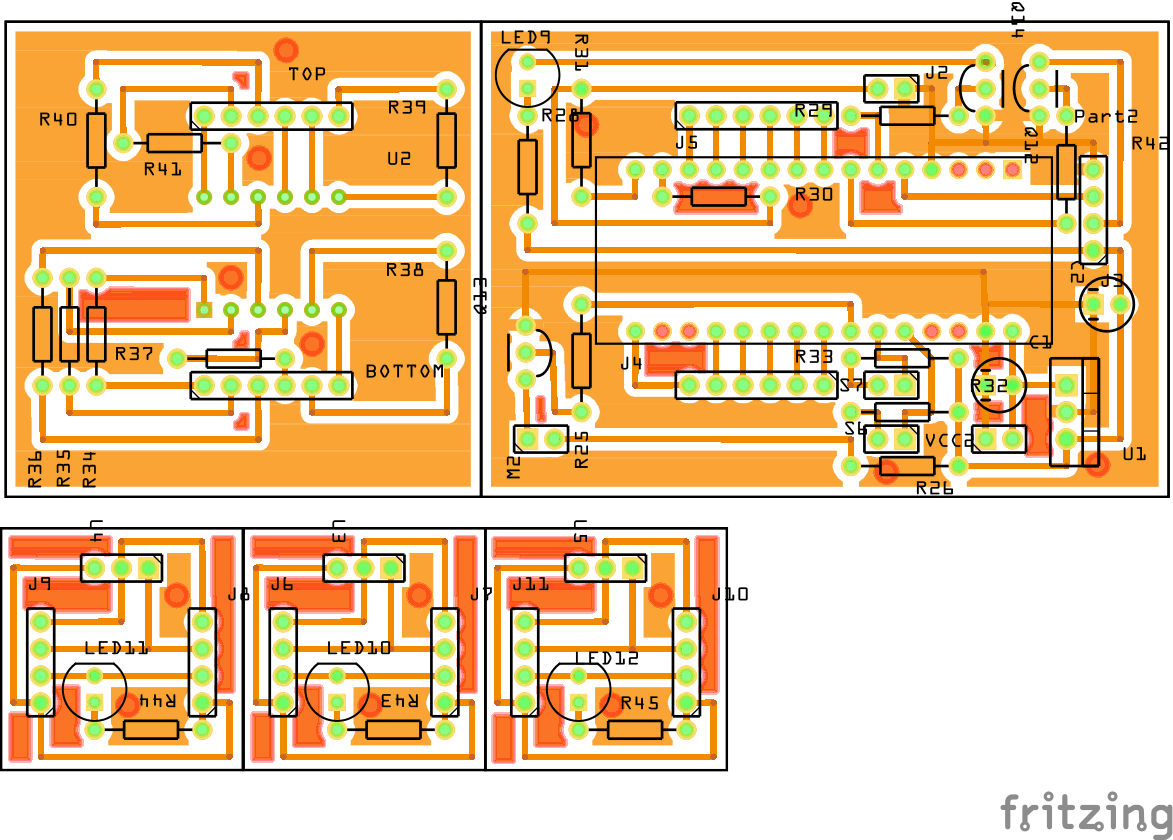
    After working on this project for the past couple of days, I was finally able to fit everything neatly onto a printed circuit board. The breadboard is great for testing an idea, but the wires can get a bit messy as the project becomes more complex. I etched the PCB boards using the tonner method for the mask and ferric chloride as the etchant. With that said, there are a couple of changes I made to the wiring itself. Most of these changes were made to allow components to fit better with the laser tag gun. The process of making these boards begins with a breadboard diagram.

    Next, a wiring diagram was made from the connections on the breadboard. It makes the wiring connections easier to read.

    Finally the PCB board components were laid out. I used a ground fill to save as much etching as possible.

    The final result.

  • Troubleshooting the Mini Kossel 3D Printer

    For the past few weeks I’ve been taking a break from my laser tag project to put together my Mini Kossel 3D printer. It took a while for me to get it working, but the final print result turned out well. I purchased this printer a few months ago from an on-line company called Mixshop; there was a long delay in their lead time, but they did deliver the product in the end. I basically followed their Kossel Manual for the assembly which is pretty good, but I find their instructions to be somewhat incomplete.

    See full troubleshooting guide